 Skip to content
 LightBurn has grown into one of the most widely used software packages for laser cutting and engraving. I use it for most of my own laser work, particularly with Ruida-controlled CO₂ machines. This learning centre brings together the LightBurn tutorials and demonstrations on LaserUser, but organises them by what you are trying to achieve rather than simply by the order in which the videos were released.
If you are completely new to LightBurn, start with the first section below. If you already know the basics, jump directly to drawing and editing, job setup, cameras, machine setup, projects or the older feature demonstrations.
A note about older videos: LightBurn has changed considerably since some of these tutorials were recorded. The underlying workflow or technique may still be useful even where menus, buttons or terminology look different in current versions. I have kept those videos because they remain useful demonstrations, but older material should be treated as a learning resource rather than a pixel-perfect guide to the current interface.
Start Here: LightBurn for Beginners
These tutorials cover the core workflow: adding a laser, understanding the interface, assigning cut and engraving settings, positioning the job and getting a first project onto the machine.
First Time User: Device Setup and Basic Use
New device setup, basic configuration and the first steps in using LightBurn.
LightBurn User Interface Walkthrough
An introduction to the main editing tools and workspace.
LightBurn Cut Settings
Cutting, marking, vector engraving, image engraving and how the principal settings affect the job.
Understanding LightBurn Start From Modes
Absolute Coordinates, Current Position and User Origin are fundamental to putting the job where you expect it to be.
A LightBurn Project From Start to Finish
An older demonstration, but still useful for seeing the overall workflow of setting up and running a small project.
Drawing, Text and Editing Tools
Once the basic workflow makes sense, these tutorials cover the tools used to create, import and modify artwork inside LightBurn.
Importing, Selecting, Grouping and Moving Objects
Text and Offsetting
Trace Image and Weld
Image Trace
Snapping
Welded Names: Text, Offset and Weld
Text on a Path
SHX Single-Line Fonts
Boolean Union: Connecting a Name to an Ornament
Job Setup, Cutting and Production Tools
This group is particularly useful once you are doing real production work rather than simply learning the interface.
Cut Planner
Tabs and Bridges
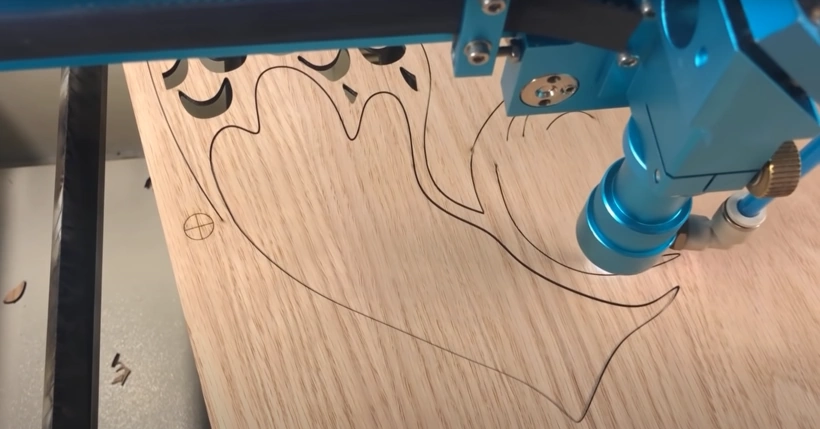
Cutting a Project Larger Than the Laser Bed
Uses Cut Shapes and Print and Cut with a pass-through machine to divide and accurately reposition a larger project.
Cut Puzzle Using Cut Shapes
Quick Cut Shapes Tutorial
Virtual Arrays
Images and Engraving
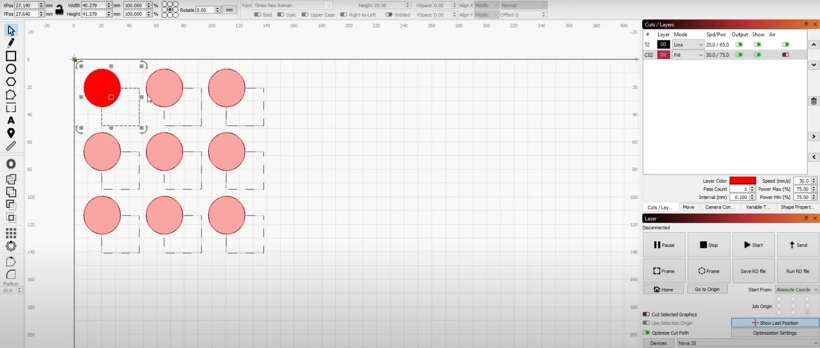
LightBurn includes tools for preparing raster images as well as vector artwork. These tutorials cover some of the image-specific functions.
Image Masking
Image Dithering and Other Editing Improvements
Adjust Image and Other Later Feature Additions
This is an older feature-preview video. Use it to understand the concepts rather than as a guide to the current interface.
LightBurn Camera Setup and Positioning
Camera Setup
Camera Lens Calibration
Camera Features Demonstration
Machine Setup and Connections
Machine-specific tutorials can be useful, but firmware and manufacturer support change over time. Check the current machine manufacturer’s instructions and current LightBurn documentation before applying an older setup procedure.
Setting Up an Ortur Laser With LightBurn
Setting Up a SCULPFUN Laser With LightBurn
Setting Up an xTool D1 With LightBurn
Installing LightBurn on macOS
LightBurn Projects
Wi-Fi QR Code Project
A complete small project that combines artwork, text and engraving settings.
Drawing a Rattan Weave Pattern
A design project using node editing, the pen tool and several other LightBurn drawing functions.

Useful LightBurn Feature Demonstrations
The original LaserUser LightBurn collection also contains shorter demonstrations. Some show features that have since evolved, but they can still be useful for understanding what the tools are designed to do.
Power Scaling
Usability Features and Shortcuts
Arc Recovery on Imported DXF Files
Arrays and Grids
SVG, DXF, Join and Optimisation Tools
Auto Join
Node Editing, Perforation and Flood Fill
Boolean Operations
Preview and Simulation
Text on a Curve
Trim and Extend
QR Code Generator
Older and Historical LightBurn Demos
These are retained mainly as historical or specialist demonstrations. They are not the best starting point for learning a current version of LightBurn.
Multi-Line Text Preview
Early Text on Path Preview
LightBurn vs RDWorks Speed Comparison
The LightBurn ‘Change a Tyre?’ Speed Demo
Backlash Simulation Development Tool
LightBurn Troubleshooting
For problems such as connecting to the laser, drivers, camera calibration, machine-specific configuration or software behaviour, use the tutorials above where they match your problem, but also check the current LightBurn documentation. Connection methods, drivers and supported hardware can change, so current documentation should take precedence over an older video where the two differ.
Window Docking Problems
Which LightBurn Tutorial Should I Start With?
If you have just installed LightBurn, begin with First Time User, then work through the interface walkthrough, cut settings and Start From modes. Those four subjects cover much of the knowledge needed to get from an empty workspace to a correctly positioned first job.
After that, there is little reason to follow the tutorials numerically. Choose the section that matches the job you are trying to do. That is why this page is now arranged by task rather than release date.
LightBurn itself maintains current documentation covering installation, device setup, features and troubleshooting. Where a LaserUser video shows an older interface, use the video for the practical concept and the current LightBurn documentation for version-specific controls.
If you enjoyed this series of Lightburn Software Tutorials. Why not try out one of our other video series such as:
The Tangerine Tiger Series where Russ has purchased a new 500 x 300mm, 50W laser machine from eBay with a view to modifying and upgrading it. In fact, he rips out the glass laser tube and high voltage power supply and replaces them with an RF laser source and PSU from Cloudray. Find out how the expensive RF laser source compares to a glass CO2 laser tube and prepare to get your hands dirty!
The Lightblade Learning Lab is a series of videos that Russ did for Thinklaser Limited based on using the Lightblade 4060 Laser Cutting and Engraving Machine. The Lightblade 4060 has a 400 x 600mm bed size and was supplied with a 60W EFR laser tube.
The Fiber Laser Series is all about Russ’s adventures and investigations with a 30 watt fibre laser, loaned to him by Dean at Lotus Laser Systems. If you are looking for a laser solution to engrave metal, without the fuss of using coatings such as Thermark, Cermark or Molybdenum Disulphide spray, then this is the series for you.
The Top 10 Ranked RDWorks Learning Lab Videos.
The K40 Xtreeem Laser Cutter Upgrade Series is a series of 6 videos covering how Russ, strips down a generic K40 laser. He then designs and builds a number of new components and completely upgrades and overhauls the K40 into a high specification K40 Xtreeem Laser cutting and engraving machine.
Why not check out The Concise RDWorks Learning Lab Series that condenses all of Russ’s work into an easy to follow encyclopaedia of laser knowledge.
What Next?
Did you enjoy this post? Why not check out some of our other posts:
Disclaimer
Last updated April 25, 2024
WEBSITE DISCLAIMER
The information provided by n-Deavor Limited, trading as Laseruser.com (“we,” “us” , or “our”) on (the “Site”) is for general informational purposes only. All information on the Site is provided in good faith, however we make no representation or warranty of any kind, express or implied, regarding the accuracy, adequacy, validity, reliability, availability or completeness of any information on the Site.
UNDER NO CIRCUMSTANCE SHALL WE HAVE ANY LIABILITY TO YOU FOR ANY LOSS OR DAMAGE OF ANY KIND INCURRED AS A RESULT OF THE USE OF THE SITE OR RELIANCE ON ANY INFORMATION PROVIDED ON THE SITE. YOUR USE OF THE SITE AND YOUR RELIANCE ON ANY INFORMATION ON THE SITE IS SOLELY AT YOUR OWN RISK.
EXTERNAL LINKS DISCLAIMER
The Site may contain (or you may be sent through the Site) links to other websites or content belonging to or originating from third parties or links to websites and features in banners or other advertising. Such external links are not investigated, monitored, or checked for accuracy, adequacy, validity, reliability, availability or completeness by us.
WE DO NOT WARRANT, ENDORSE, GUARANTEE, OR ASSUME RESPONSIBILITY FOR THE ACCURACY OR RELIABILITY OF ANY INFORMATION OFFERED BY THIRD-PARTY WEBSITES LINKED THROUGH THE SITE OR ANY WEBSITE OR FEATURE LINKED IN ANY BANNER OR OTHER ADVERTISING.
WE WILL NOT BE A PARTY TO OR IN ANY WAY BE RESPONSIBLE FOR MONITORING ANY TRANSACTION BETWEEN YOU AND THIRD-PARTY PROVIDERS OF PRODUCTS OR SERVICES.
AFFILIATES DISCLAIMER
The Site may contain links to affiliate websites, and we receive an affiliate commission for any purchases made by you on the affiliate website using such links. Our affiliates include the following:
- makeCNC who provide Downloadable Patterns, Software, Hardware and other content for Laser Cutters, CNC Routers, Plasma, WaterJets, CNC Milling Machines, and other Robotic Tools. They also provide Pattern Files in PDF format for Scroll Saw Users. They are known for their Friendly and Efficient Customer Service and have a comprehensive back catalogue as well as continually providing New Patterns and Content.
- Cloudray Laser: a world-leading laser parts and solutions provider, has established a whole series of laser product lines, range from CO2 engraving & cutting machine parts, fiber cutting machine parts and laser marking machine parts.
